
From our sponsor: Leverage AI for dynamic, custom website builds with ease.
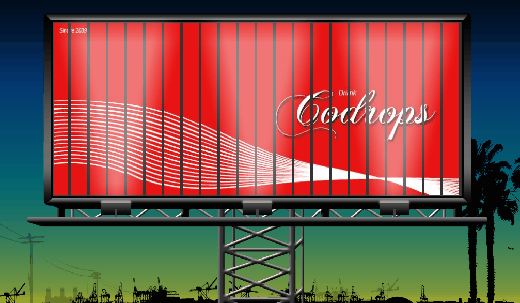
Currently we are in the “hey, let’s do that flash thing in jQuery”-mood and so we came up with another idea: a rotating billboard system.
In this tutorial we will use some images, CSS and jQuery to create the effect of a rotating billboard with two ads. The idea is to make one set of image slices disappear while another one (the other ad) appear. We will decrease the width of each disappearing slice and increase the width of each appearing slice. This will give the effect of rotating slices, just like in a rotating billboard system.
Ok, let’s start coding!
1. The HTML
We will have quite a lot of markup for the image slices – it will be 22 slices for each ad:
<div class="container">
	<div class="ad">
		<div id="ad_1" class="ad_1">
			<img class="slice_1" src="ads/ad1_slice01.jpg"/>
			<img class="slice_2" src="ads/ad1_slice02.jpg"/>
			<img class="slice_3" src="ads/ad1_slice03.jpg"/>
			<img class="slice_4" src="ads/ad1_slice04.jpg"/>
			<img class="slice_5" src="ads/ad1_slice05.jpg"/>
			<img class="slice_6" src="ads/ad1_slice06.jpg"/>
			<img class="slice_7" src="ads/ad1_slice07.jpg"/>
			<img class="slice_8" src="ads/ad1_slice08.jpg"/>
			<img class="slice_9" src="ads/ad1_slice09.jpg"/>
			<img class="slice_10" src="ads/ad1_slice10.jpg"/>
			<img class="slice_11" src="ads/ad1_slice11.jpg"/>
			<img class="slice_12" src="ads/ad1_slice12.jpg"/>
			<img class="slice_13" src="ads/ad1_slice13.jpg"/>
			<img class="slice_14" src="ads/ad1_slice14.jpg"/>
			<img class="slice_15" src="ads/ad1_slice15.jpg"/>
			<img class="slice_16" src="ads/ad1_slice16.jpg"/>
			<img class="slice_17" src="ads/ad1_slice17.jpg"/>
			<img class="slice_18" src="ads/ad1_slice18.jpg"/>
			<img class="slice_19" src="ads/ad1_slice19.jpg"/>
			<img class="slice_20" src="ads/ad1_slice20.jpg"/>
			<img class="slice_21" src="ads/ad1_slice21.jpg"/>
			<img class="slice_22" src="ads/ad1_slice22.jpg"/>
		</div>
		<div id="ad_2" class="ad_2">
			<img class="slice_1" src="ads/ad2_slice01.jpg"/>
			<img class="slice_2" src="ads/ad2_slice02.jpg"/>
			<img class="slice_3" src="ads/ad2_slice03.jpg"/>
			<img class="slice_4" src="ads/ad2_slice04.jpg"/>
			<img class="slice_5" src="ads/ad2_slice05.jpg"/>
			<img class="slice_6" src="ads/ad2_slice06.jpg"/>
			<img class="slice_7" src="ads/ad2_slice07.jpg"/>
			<img class="slice_8" src="ads/ad2_slice08.jpg"/>
			<img class="slice_9" src="ads/ad2_slice09.jpg"/>
			<img class="slice_10" src="ads/ad2_slice10.jpg"/>
			<img class="slice_11" src="ads/ad2_slice11.jpg"/>
			<img class="slice_12" src="ads/ad2_slice12.jpg"/>
			<img class="slice_13" src="ads/ad2_slice13.jpg"/>
			<img class="slice_14" src="ads/ad2_slice14.jpg"/>
			<img class="slice_15" src="ads/ad2_slice15.jpg"/>
			<img class="slice_16" src="ads/ad2_slice16.jpg"/>
			<img class="slice_17" src="ads/ad2_slice17.jpg"/>
			<img class="slice_18" src="ads/ad2_slice18.jpg"/>
			<img class="slice_19" src="ads/ad2_slice19.jpg"/>
			<img class="slice_20" src="ads/ad2_slice20.jpg"/>
			<img class="slice_21" src="ads/ad2_slice21.jpg"/>
			<img class="slice_22" src="ads/ad2_slice22.jpg"/>
		</div>
	</div>
</div>

<div class="billboard"></div>
For these images, 22 slices (each slice 35 pixels wide) of a 770 pixel wide and 340 pixel high image were made. One might think that this is a lot of work and that we could actually take one whole picture and create divs acting like the slices with that background image and the right background position. But then we would not be able to create the same effect of a rotating slice (at least not with the JavaScript we created for this showcase).
The billboard will be an absolute positioned div with the billboard image. Since the image has some transparent spotlights, we want to lay it over the ad container.
2. The CSS
The style for the billboard frame will be the following:
.billboard{
    position:absolute;
    bottom:0px;
    left:50%;
    margin-left:-447px;
    width:916px;
    height:599px;
    background:transparent url(../images/billboard.png) no-repeat 0px 0px;
}
To position the element in the center of the page, we set the left value to 50% and the left margin negatively to half of the width of the element.
The container for the ads will have the same style like the billboard, except the background-image. We do that, because we need to position the containing elements at the same place like the billboard. We don’t want to place the ads inside of the billboard because we need the billboard to be on top of them. So, we do this trick and create another element with the same positioning:
.container{
    position:absolute;
    bottom:0px;
    left:50%;
    margin-left:-447px;
    width:916px;
    height:599px;
}
.ad{
    width:800px;
    height:336px;
    position:relative;
    margin:35px 0px 0px 60px;
    background-color:#333;
}
.ad_1 img{
    width:35px;
    height:336px;
    position:absolute;
}
.ad_2 img{
    width:0px;
    height:336px;
    margin-left:18px;
    position:absolute;
}
The slices of the ad images will be 35 pixels wide. The slices of the second ad will have the same width, but initially we need to set it to 0. We also need to set the left margin of the second slices to 18 pixels since we want to create the rotating effect. I will explain more about this value after we define the CSS for the slices.
The single slices need to be positioned:
.slice_1{left:0px;}
.slice_2{left:36px;}
.slice_3{left:72px;}
.slice_4{left:108px;}
.slice_5{left:144px;}
.slice_6{left:180px;}
.slice_7{left:216px;}
.slice_8{left:252px;}
.slice_9{left:288px;}
.slice_10{left:324px;}
.slice_11{left:360px;}
.slice_12{left:396px;}
.slice_13{left:432px;}
.slice_14{left:468px;}
.slice_15{left:504px;}
.slice_16{left:540px;}
.slice_17{left:576px;}
.slice_18{left:612px;}
.slice_19{left:648px;}
.slice_20{left:684px;}
.slice_21{left:720px;}
.slice_22{left:756px;}
By positioning the elements one more pixel to the left than they are actually wide, we create a little gap between the them. Now, the left margin has a value of 18 pixels because it is half of a slice plus its gap. We set this because we want the slices to appear (or disappear) from (or to) their center and not just from the side. If we simply set the width of a slice to 0 pixels the image will not seem to be rotating.
And that is all the CSS. For the additional fancy background images you can check out the downloadable version below.
Let’s create the rotating effect with jQuery.
3. The JavaScript
We will now create a function for rotating the slices. The function will make the first ad slices disappear by making their width 0 pixels. To achieve the rotating effect, we add a left margin of 18 pixels.
While the first ad slices disappear we make the others appear by removing the left margin of 18 pixels (that we initially set in the CSS) and giving them a width of 35 pixels. We call the rotate function like this:
 $('#ad_1 > img').each(function(i,e){
        rotate($(this),500,3000,i);
    });
The whole script that we call will look like this:
$(function() {
    $('#ad_1 > img').each(function(i,e){
        rotate($(this),500,3000,i);
    });
    function rotate(elem1,speed,timeout,i){
        elem1.animate({'marginLeft':'18px','width':'0px'},speed,function(){
            var other;
            if(elem1.parent().attr('id') == 'ad_1')
                other = $('#ad_2').children('img').eq(i);
            else
                other = $('#ad_1').children('img').eq(i);
                other.animate({'marginLeft':'0px','width':'35px'},
                                  speed,function(){
                var f = function() { rotate(other,speed,timeout,i) };
                setTimeout(f,timeout);
            });
        });
    }
});
So, the rotate function performs the hiding of the current element (that it was called upon) and then identifies which element it’s currently dealing with, so that another call of the rotate function can be performed on the other ad slices.
The two times mentioned in the rotate function stand for the speed of the rotation effect (speed) and the duration between the swapping of the ads (timeout) in milliseconds.
And that’s it!
I hope you like and enjoy it!



nice idea
i cant add 3. img..i added source code by img_2 and style css code by img_2 but i chanced from all 2 to 3…pls can you give litle info..thanx for all from now..
Nice work but when i add more ads it doesnot work only first 3 are shown
Hi Mary Lou.
Can you please give the JavaScript if I were to add two more images to the billboard.
Thank You!!
cool..
Very inspiring project.
This is very impressive…, good job..
not worked on Fire Fox 4
How could i use this on joomla?
I put it online with the idea of selling adverts and getting people to tweet social it etc
http://www.twitted.co/
Just got to get a few things in place but overall this looks like a great little concept to have a play about with
I used the name TwitTed as I have many Double T Ted’s
They are Teddy Bear Characters and TwitTed will appear on your Billboard demo on TwitTed.co son Folks
So Look Back Soon Folks 🙂
Nobody will notice that Loony Toons ref there will they?
it would be nice if one could add a couple or more pix!(4 or 6 or 8)
please supply the right working code
to do this.thanx :))
i altered the speed like this on my personal webpage intro:
rotate($(this),1300,13000,i);
so the panels turn more in harmony even when the animation runs long time.
i managed to have the effect working with seven (7) pictures (800 X 336) !
to see it click on my HEXJUMPER name on this comment please.
(attention the previous comment,dd.24 august 2011,with the HEXJUMPER name is an alternative website with alternative effect too!)
hi
it looks really impressive.
probably the strange part part is lights on a billboard frame – mostly they are located on the top 😉
otherwise – I love it 🙂
hey guys its great but is there a way to add a url link to the pictures on billboard thats the whole point advertising but i cant seem to do it say u click on pic and it goes to url address …bla…a website ??????????
anyone thanks !
Is there a way of setting it up so that it has more than 2 slides, maybe 4 or 5…
I would like to use it on the news page on my site…
Ahhhh…. Just lovely. I’m a Jquery addict so I’ll be adding this to my collection. Many thanks!
So if you need more than one two pictures in the rotator here it is the procedure:
in style.css, replace the line “.ad_2 img{” with “.ad_2 img, .ad_3 img, .ad_4 img{” if you need you can go even more further… 😉
in index.html replace script part with:
$(function() {
$(‘#ad_1 > img’).each(function(i,e){
rotate($(this),1300,3000,i);
});
function rotate(elem1,speed,timeout,i){
elem1.animate({‘marginLeft’:’18px’,’width’:’0px’},speed,function(){
var other;
if(elem1.parent().attr(‘id’) == ‘ad_1’)
other = $(‘#ad_2’).children(‘img’).eq(i);
else if(elem1.parent().attr(‘id’) == ‘ad_2’)
other = $(‘#ad_3’).children(‘img’).eq(i);
else if(elem1.parent().attr(‘id’) == ‘ad_3’)
other = $(‘#ad_4’).children(‘img’).eq(i);
else
other = $(‘#ad_1’).children(‘img’).eq(i);
other.animate({‘marginLeft’:’0px’,’width’:’35px’},speed,function(){
var f = function() { rotate(other,speed,timeout,i) };
setTimeout(f,timeout);
});
});
}
});
if you need you can add more else if loops, and just copy whole div with class ad_1 change his class and id to ad_3 and change img src, do the same thing for ad_4 😉
so i hope i helped someone 🙂
btw. posto bi reko da smo susjedi puno hvala manoela na izvrsnoj ideji 🙂
It is unique and awesome.
Some beautiful head you have which houses beautiful ideas.
Keep up the good things.
And, thanks for sharing.